1. Background: Service Startup Failures After Windows Password Rotation
In enterprise and public cloud infrastructure environments, security compliance standards (such as vulnerability audits or periodic password rotation policies) require updating the Windows Server local Administrator password or migrating to dedicated administrative accounts.
However, immediately following a password change on a Windows host running Veeam Backup & Replication (VBR), administrators frequently encounter critical operational disruptions:
- The Veeam Backup & Replication Console fails to launch, hanging or rejecting logon requests.
- Windows Event Viewer logs Event ID 7000 / 7038 (The service did not start due to a logon failure).
- Attempting to start the services manually via
services.mscreturns Error 1069.
[Windows Service Error]
Error 1069: The service did not start due to a logon failure.
This occurs because Veeam core components—such as the backup engine, catalog service, and broker—are configured during initial setup to run under the context of the administrative user. When the account password is changed in Windows without updating the service properties, all dependent Veeam services fail to authenticate and halt immediately.
2. Preliminary Check: Impacted Veeam Services
A standard Veeam Backup & Replication installation registers more than ten background services. The key services requiring updated logon credentials include:
| Service Name | Display Name | Purpose |
|---|---|---|
| VeeamBackupSvc | Veeam Backup Service | Core engine orchestrating backup, replication, and scheduling |
| VeeamBrokerSvc | Veeam Broker Service | Communication broker and infrastructure configuration cache |
| VeeamCatalogSvc | Veeam Guest Catalog Service | Guest OS file indexation and search service |
| VeeamCloudSvc | Veeam Cloud Connect Service | Cloud repository and tenant management service |
| VeeamEnterpriseManagerSvc | Veeam Backup Enterprise Manager | Web management interface and centralized reporting |
| VeeamRESTSvc | Veeam Backup Server RESTful API Service | REST API endpoint for automation workflows |
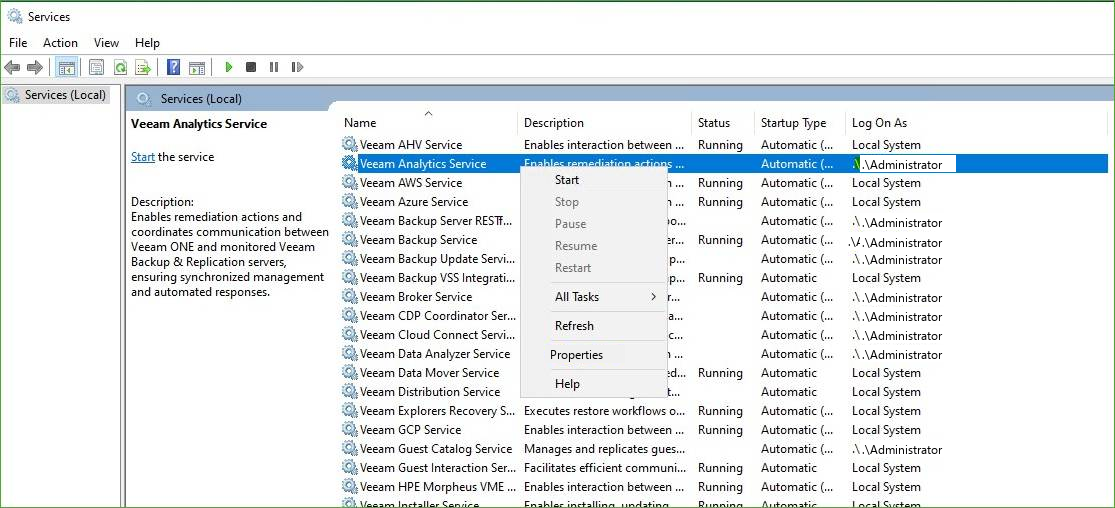
[Figure 1] Veeam services list and context menu in Windows Services Manager (services.msc)
3. Step-by-Step Remediation Procedure
Step 1. Close Open Veeam Console Instances
Ensure all active instances of Veeam.Backup.Shell.exe are closed to prevent session locks.
Step 2. Open Windows Services Manager
Press Win + R, enter services.msc, and run it with administrative privileges.
Step 3. Access Veeam Service Properties
Locate the Veeam services, right-click each target service, and select Properties.
Step 4. Update Credentials on the Log On Tab
- Switch to the Log On tab.
- Under This account, verify the target user (e.g.,
.\veeam-adminorDOMAIN\Account). - Enter the new Password and confirm it in Confirm password.
- Click Apply. A system pop-up will confirm: “The account has been granted the Log On As A Service right.”
- Click OK to commit the settings.
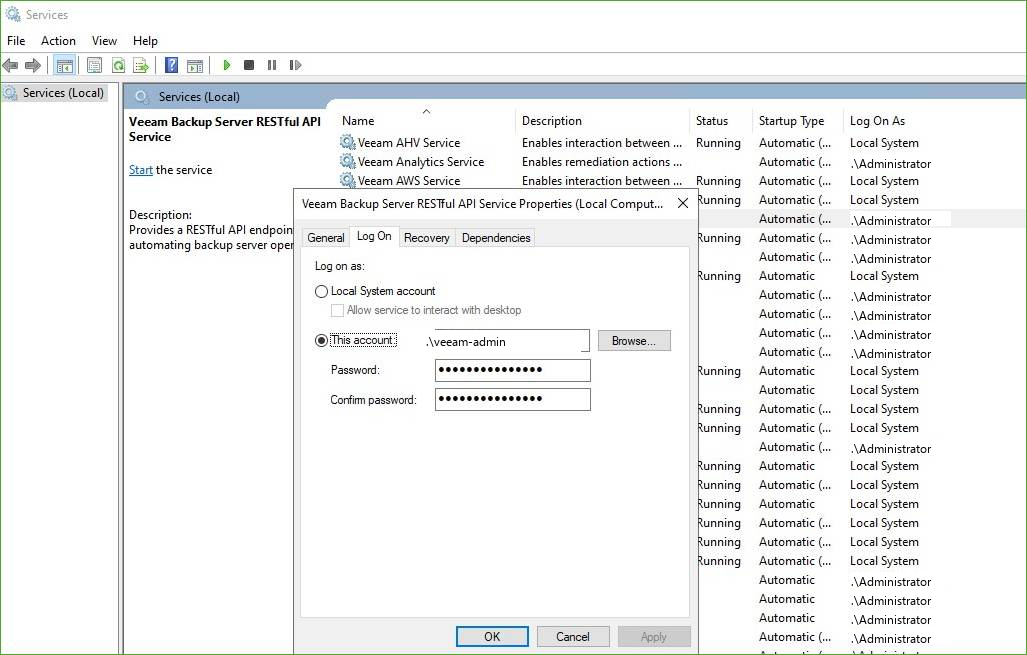
[Figure 2] Updating credentials under the Log On tab in Service Properties
[Field Note: Browsing for Users]
If changing the account name or selecting a domain object, use theBrowse...button to select the target location and clickCheck Namesbefore saving.
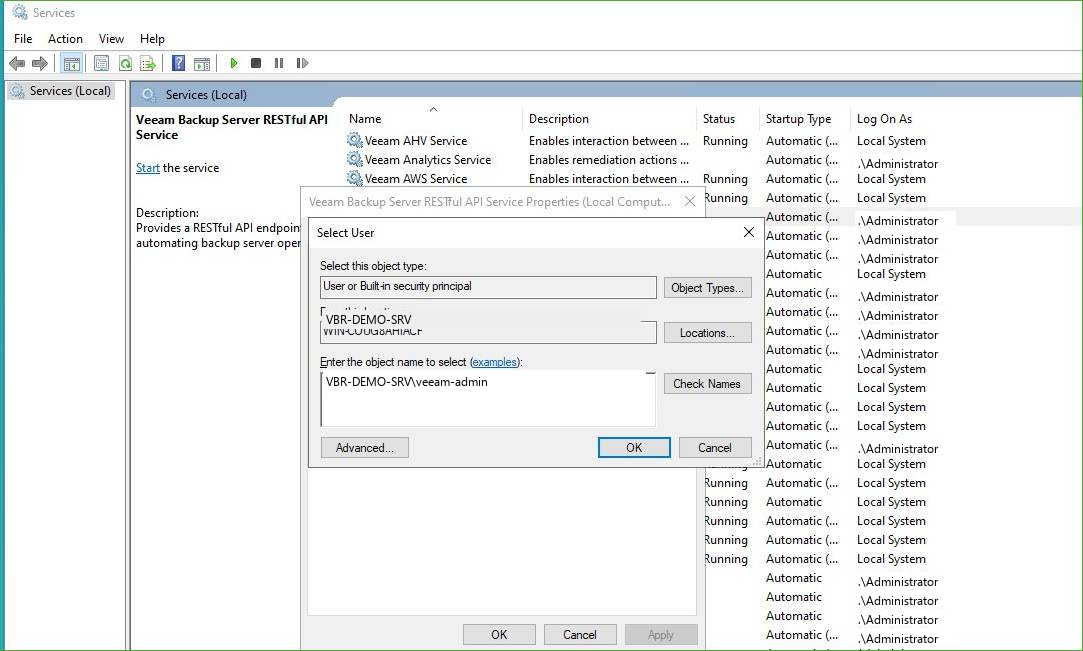
[Figure 3] Specifying the service account in the Windows Select User dialog
Step 5. Batch Update All Dependent Veeam Services
Repeat Steps 3 and 4 across all Veeam services configured with domain or local user logon accounts.
Note: Default Windows services running under
Local SystemorNetwork Servicedo not require credential updates.
Step 6. Start and Validate Services
- Right-click the updated services and select Start.
- Verify that all Veeam services show a Running status without error.
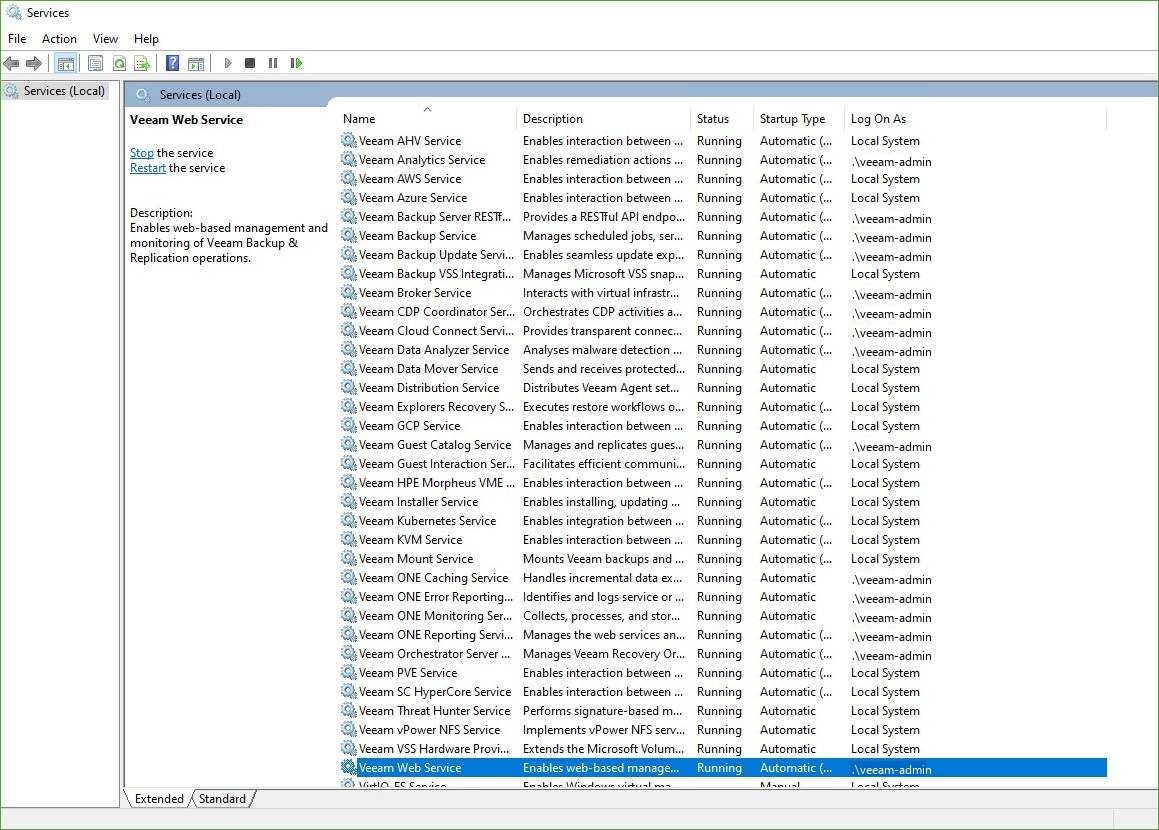
[Figure 4] All Veeam services running normally following credential updates
4. Final Verification: Console Access and Job Status
Once all background services are active:
- Launch Veeam Backup & Replication Console from the start menu or desktop.
- Sign in using the updated credentials.
- Check the status bar at the bottom to verify the connected session (
Logged in: .\veeam-admin). - Confirm that the Backup Jobs inventory and infrastructure repositories populate correctly.
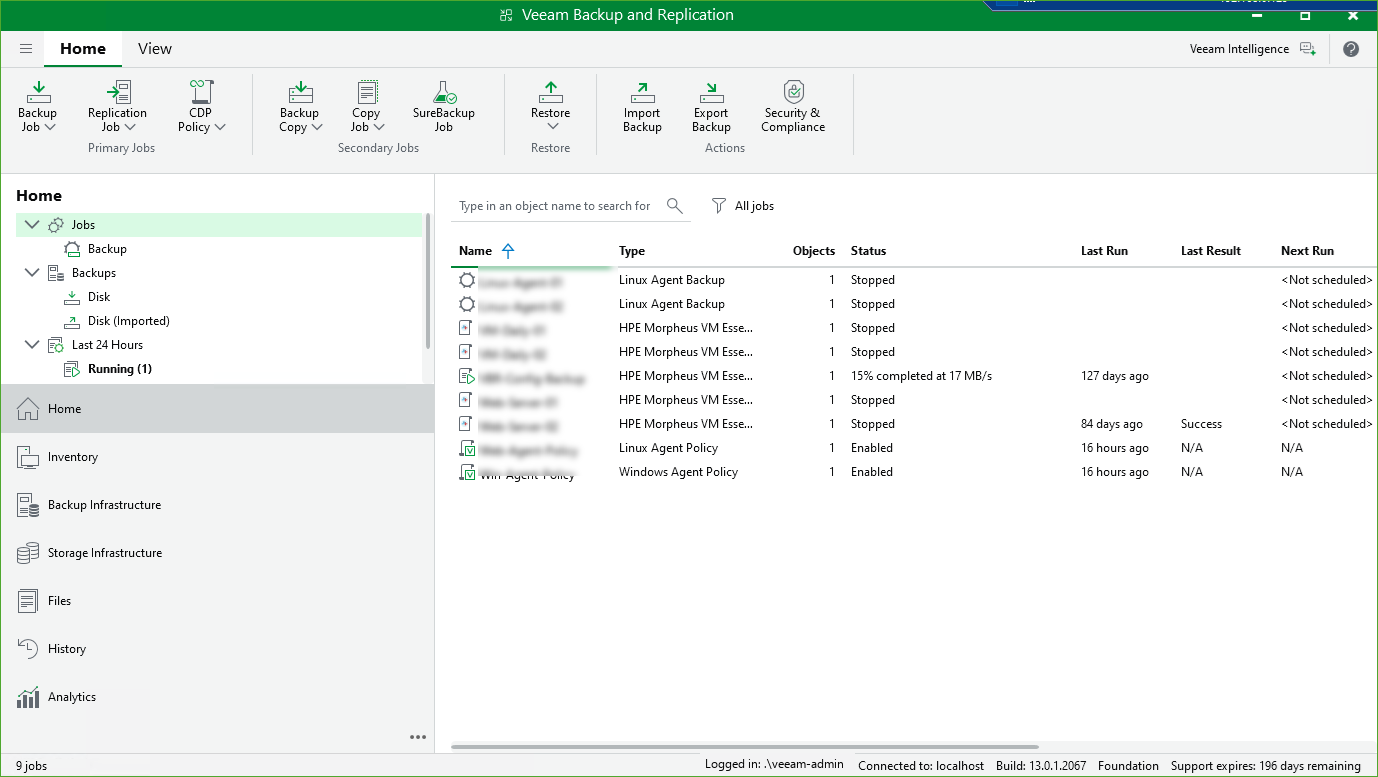
[Figure 5] Successful console login and healthy backup job list
5. Engineering Best Practices
Dedicated Service Accounts (gMSA / Non-Expiring Svc Account):
Using a personal administrator account for background service execution creates an unnecessary point of failure during password expiration cycles. Configure a dedicated, non-interactive service account or gMSA where supported.Schedule Password Changes During Maintenance Windows:
Never modify service account credentials while active backup or replication jobs are running, as interrupted data streams can leave lock files on backup repositories. Always execute credential updates during designated maintenance windows.