1. Background: Alletra MP 10.6.0 Upgrade & New Web UI Overhaul
On an enterprise production HPE Alletra Storage MP (B10K / B10120) system, we executed a firmware upgrade to OS version 10.6.0 to enhance platform stability and support the latest storage capabilities.
The 10.6.0 release brings not only underlying performance and reliability improvements but also a complete visual overhaul of the local on-premises management console from the legacy dark sidebar into a clean, modern white tree-based navigation UI.
If the storage array is connected to the internet (HPE Cloud Connect), the 10.6.0 firmware package is automatically staged (pre-downloaded) onto the system. In air-gapped environments, administrators can easily upload the package manually via the local console web UI.
2. Environment & Prerequisites
| Item | Specification / Details | Field Rationale |
|---|---|---|
| Target Storage | HPE Alletra Storage MP B10120 | 2-Node Active-Active Enterprise Block Storage |
| Current OS Version | OS 10.5.50 | Existing operational firmware version |
| Target OS Version | OS 10.6.0 (ArcusOS) | Recommended release with new UI and stability fixes |
| Package Delivery | Online Staged / Manual Load Package | Automatically pre-staged via internet connectivity |
| Mandatory Pre-check | System Readiness Checks | Must achieve 100% Passed status prior to upgrade |
| Estimated Duration | Approx. 60 – 90 minutes | Includes sequential node reboots and CDM firmware writing |
3. Step-by-Step Practical Upgrade Procedure
Step 1. Inspect Current OS Version and System Dashboard Health
Before starting, log into the local web management console and navigate to System ➔ Dashboard to verify the active OS version (10.5.50) and confirm healthy operational status (OK) for controllers, enclosure chassis, and drive IOMs.
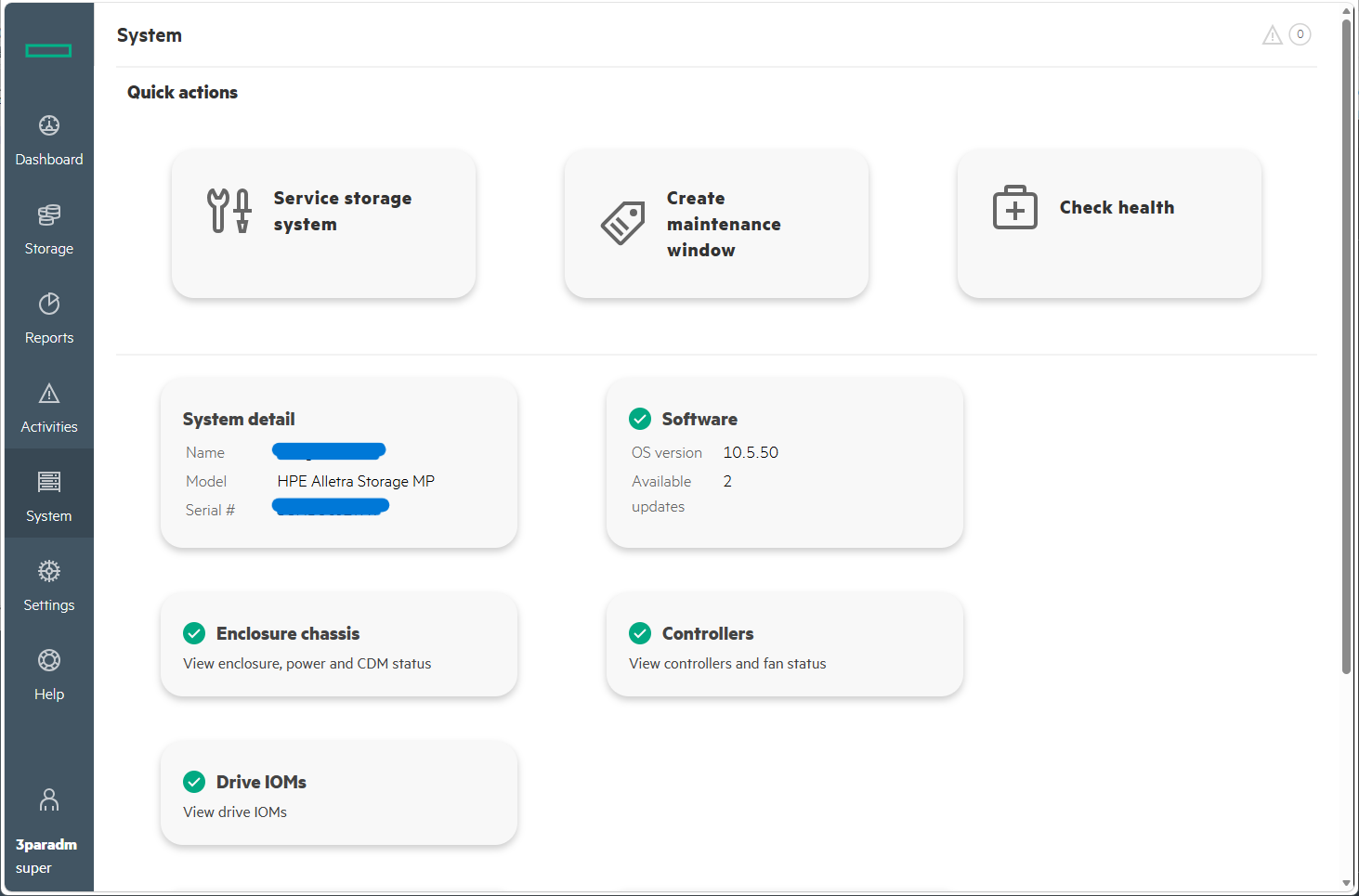
Step 1. Pre-upgrade System Dashboard inspection verifying running OS version 10.5.50
Step 2. Access Software Menu and Verify Staged 10.6.0 Firmware Package
Navigate to System ➔ Software from the left-hand navigation bar.
When connected to the internet, the recommended 10.5.60 and latest 10.6.0 packages appear automatically under the Staged updates list ready for deployment.
💡 For Air-Gapped (Offline) Environments:
ClickLoad an update packageat the top right to manually upload the pre-downloaded firmware ISO package (e.g.,OS-10.6.0.xx.iso) directly via your web browser.
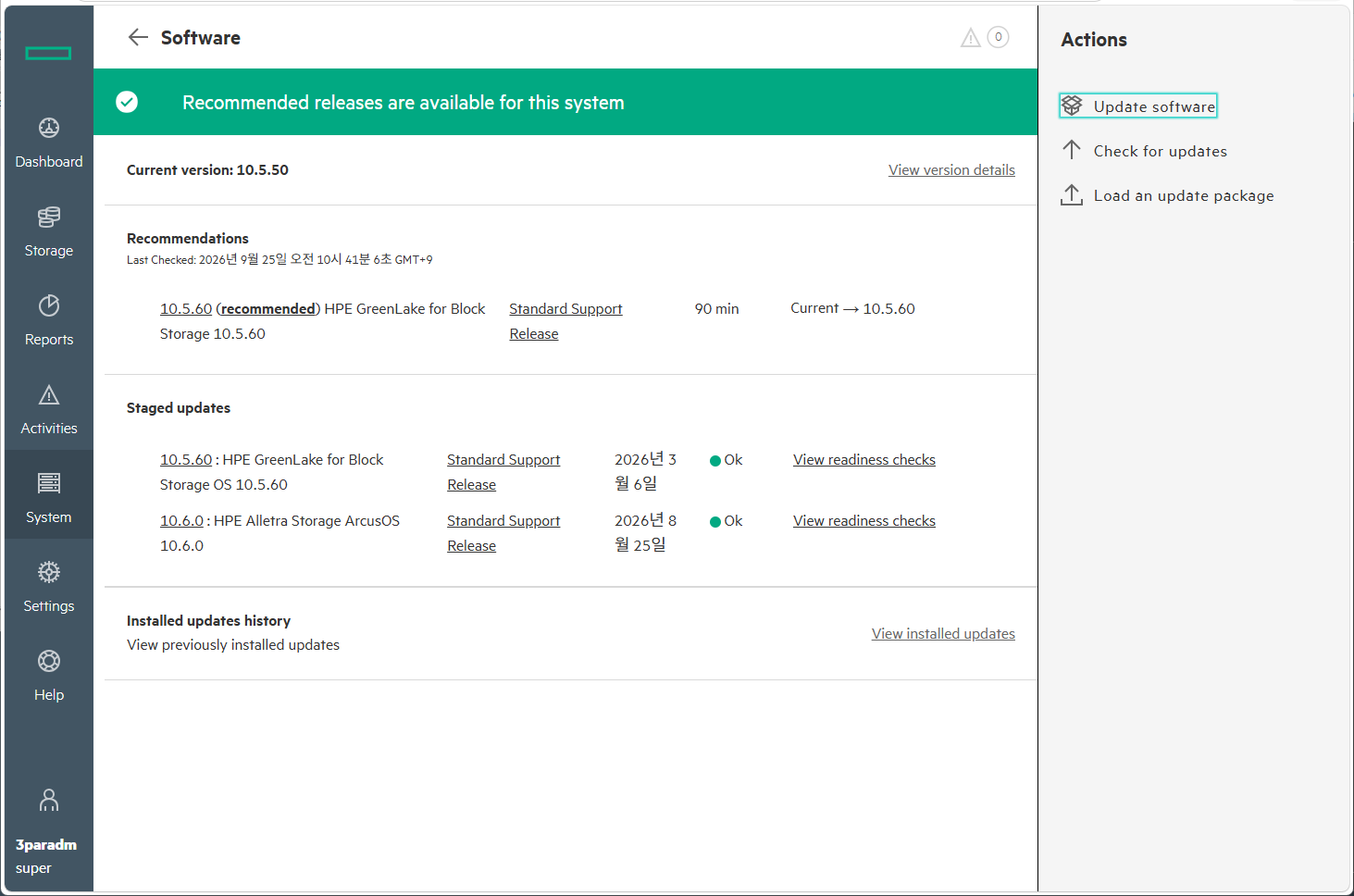
Step 2-1. Software menu displaying automatically staged 10.6.0 firmware update packages
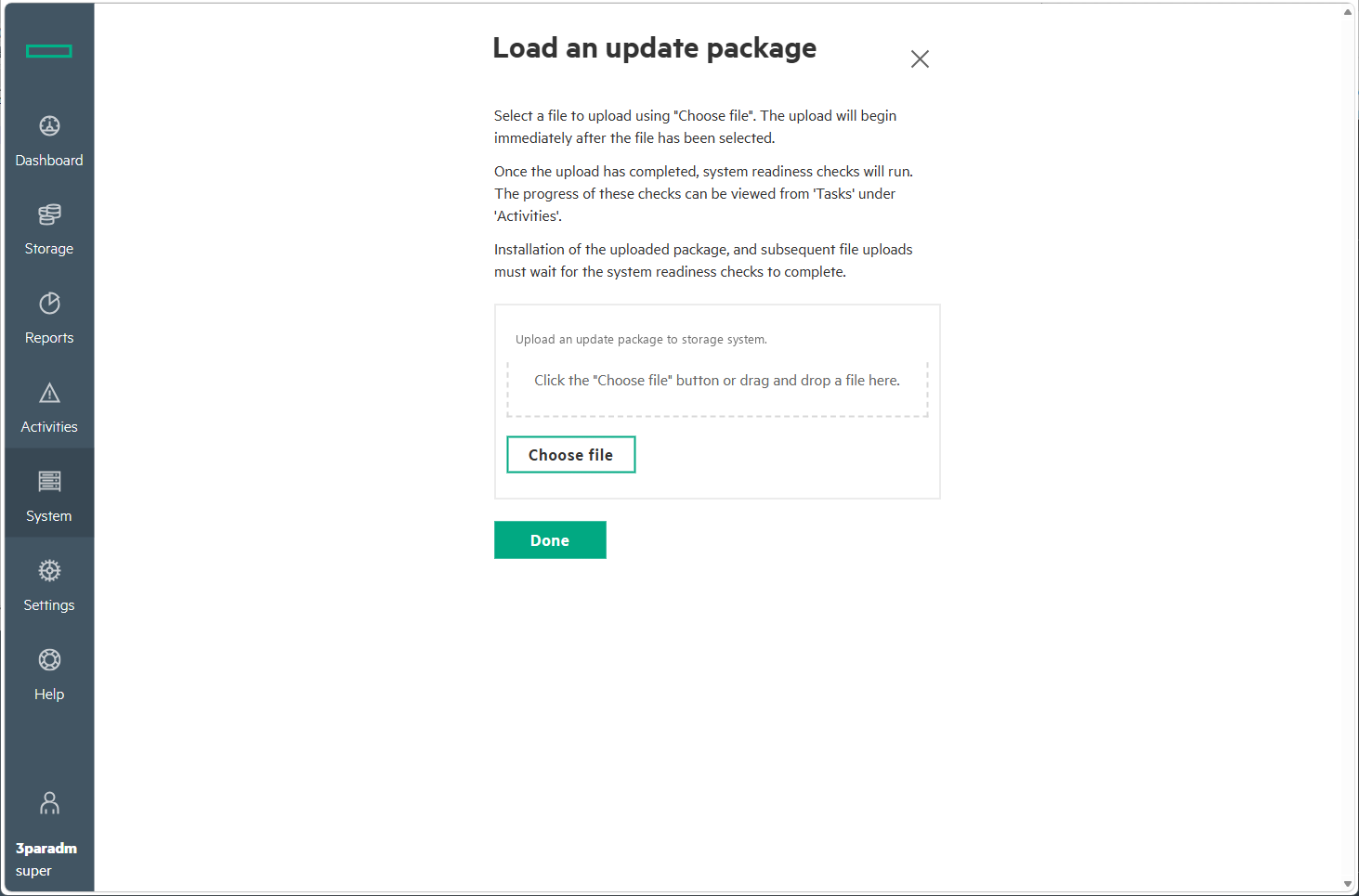
Step 2-2. Load an update package interface for air-gapped manual file uploads
Step 3. ★ Mandatory Pre-Upgrade Step: Verify System Readiness Checks
This is the most crucial verification step before executing the upgrade.
Click the View readiness checks link adjacent to the 10.6.0 staged entry to review the automated integrity scan.
- Key Pre-check Validations:
Check System Status&Restart system logger: PassedEnsure Node Disk Free Space: Validates adequate internal capacityVerify Host Connectivity: Validates active SAN host multipathing pathsCheck VV&Check VLUNs: Validates volume and LUN mapping integrity
Ensure all check categories display a green Passed status before proceeding.
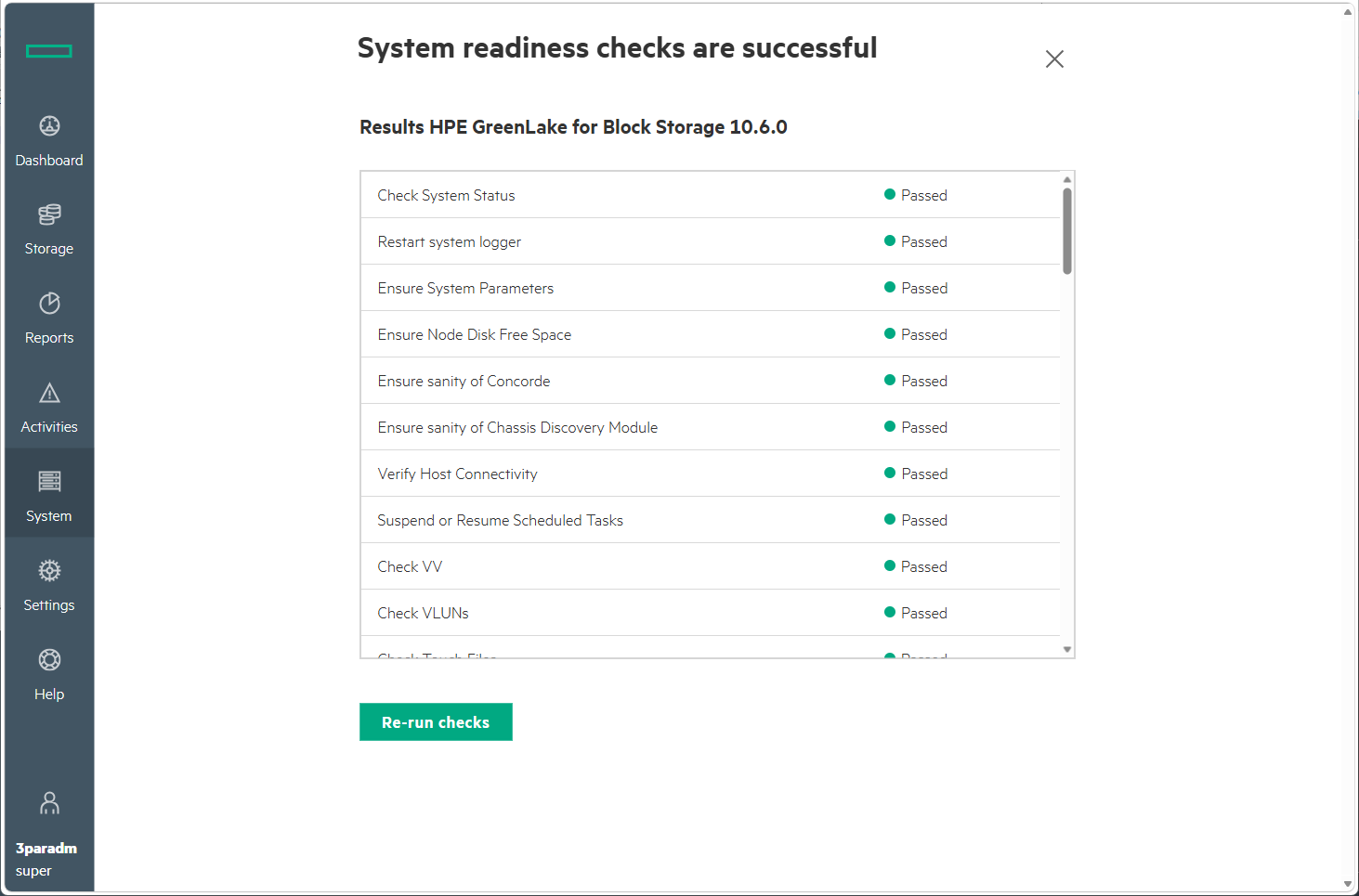
Step 3. System readiness checks summary - 100% Passed validation across all system, host, and volume components
Step 4. Initiate Update Software and Select 10.6.0 Package
With readiness checks confirmed, click the Update software action button.
In the package selection dialog, select **HPE GreenLake for Block Storage 10.6.0**and click Install.
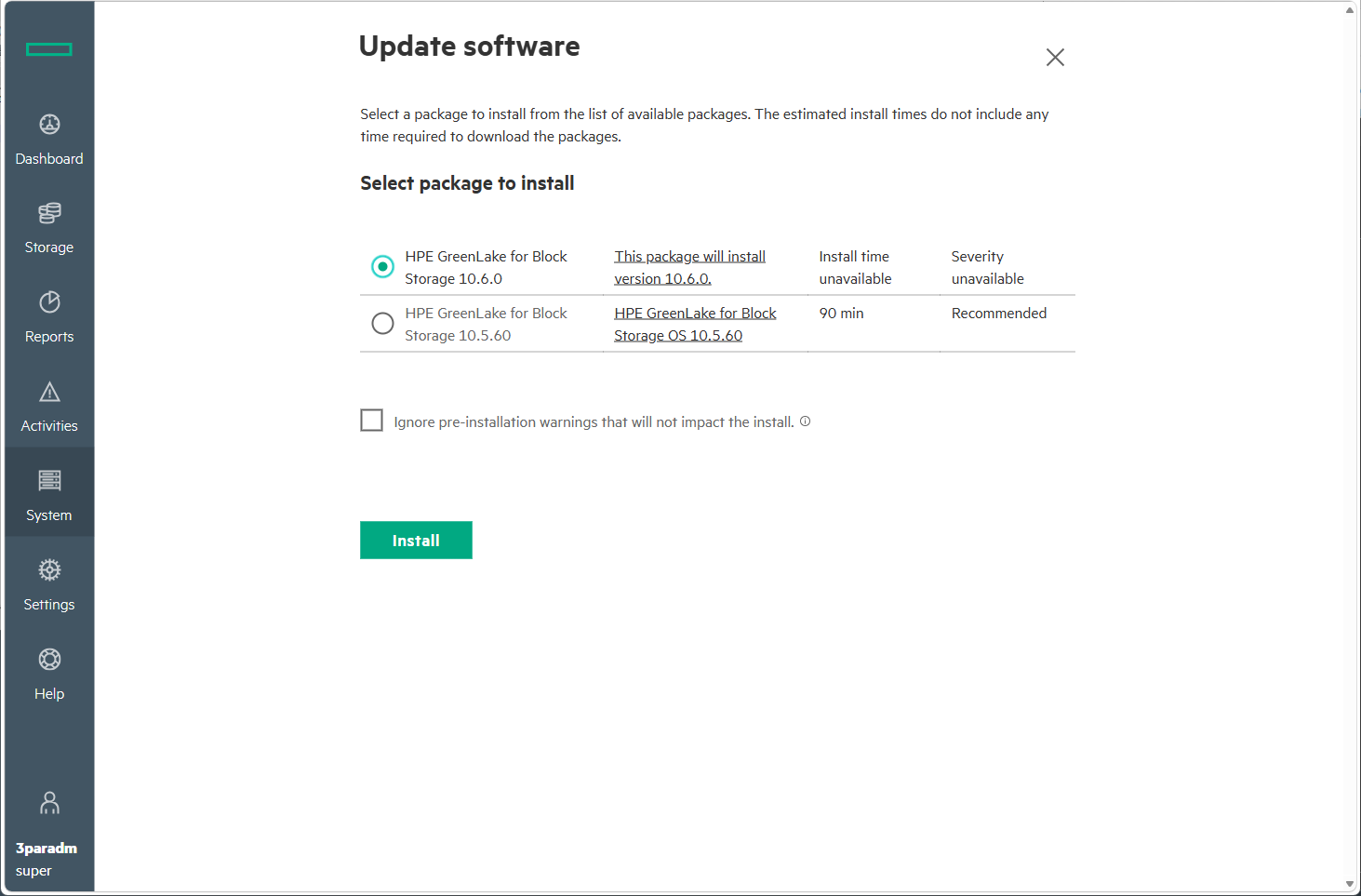
Step 4. Selecting HPE GreenLake for Block Storage 10.6.0 package and initiating Install
Step 5. Background OS Firmware Upgrade Task Activation
Upon execution, a top notification banner displays Starting installation of HPE GreenLake for Block Storage 10.6.0, and the background Activities upgrade session starts.
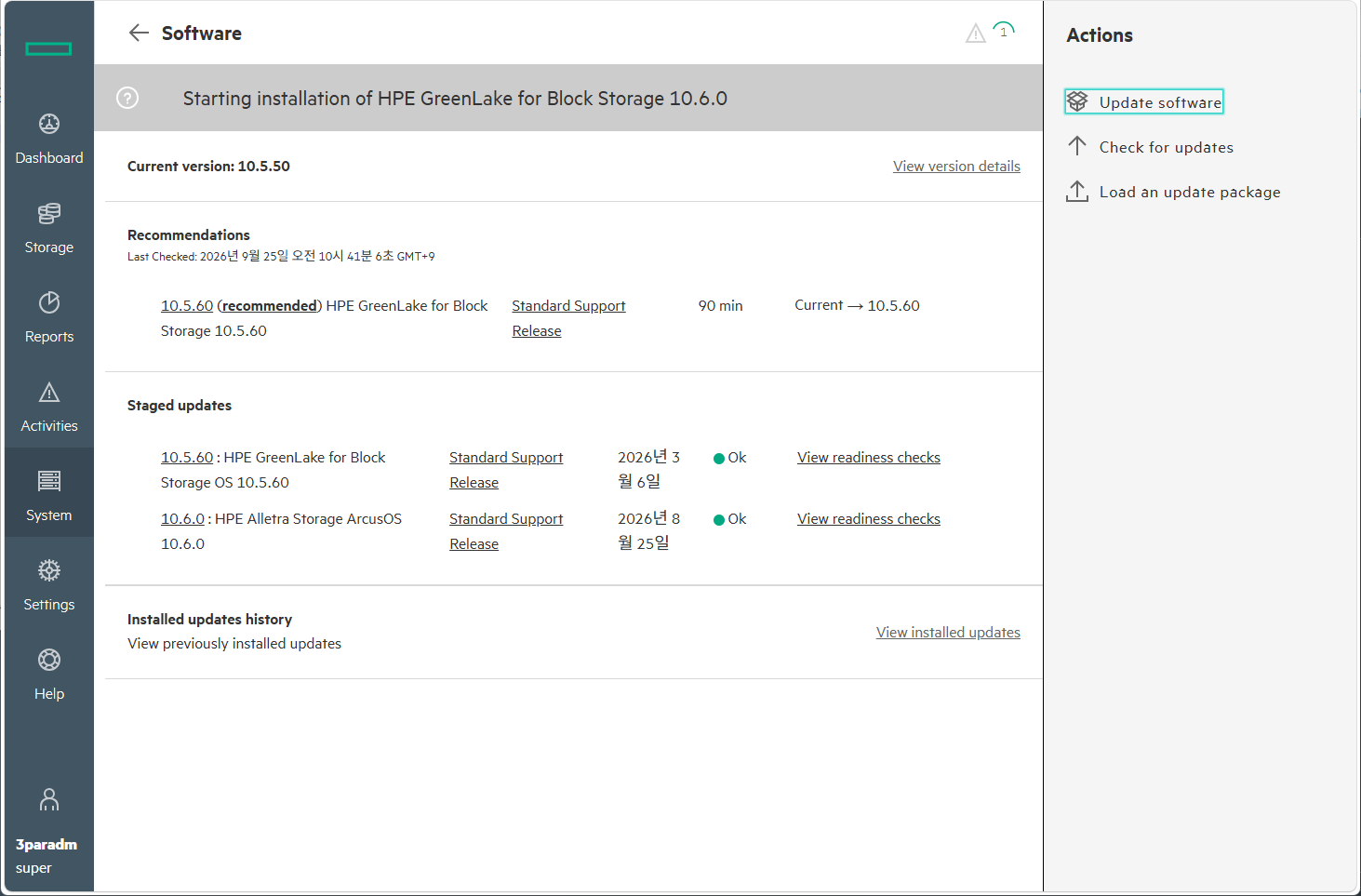
Step 5. Confirmation banner indicating 10.6.0 installation startup and background task activation
Step 6. Non-Disruptive OS Upgrade & Automatic Transition to New UI
Alletra MP executes a non-disruptive upgrade by sequentially failing over and upgrading controller nodes without interrupting host I/O.
- Pre-update checks: Final system sanity checks.
- Node software & firmware writing: Flashing software and firmware onto Node 0 and Node 1.
- Sequential node reboot: Node 0 reboots and restores health ➔ Node 1 reboots.
- Version switch & console daemon restart: An
Update in progressdialog appears during web management service reinitialization. - Component firmware & New UI Overhaul:
As version switching finalizes, the management console automatically refreshes into the new modern white tree-based UI, while disk drives and CDM (Chassis Discovery Module) component firmwares complete in the background.
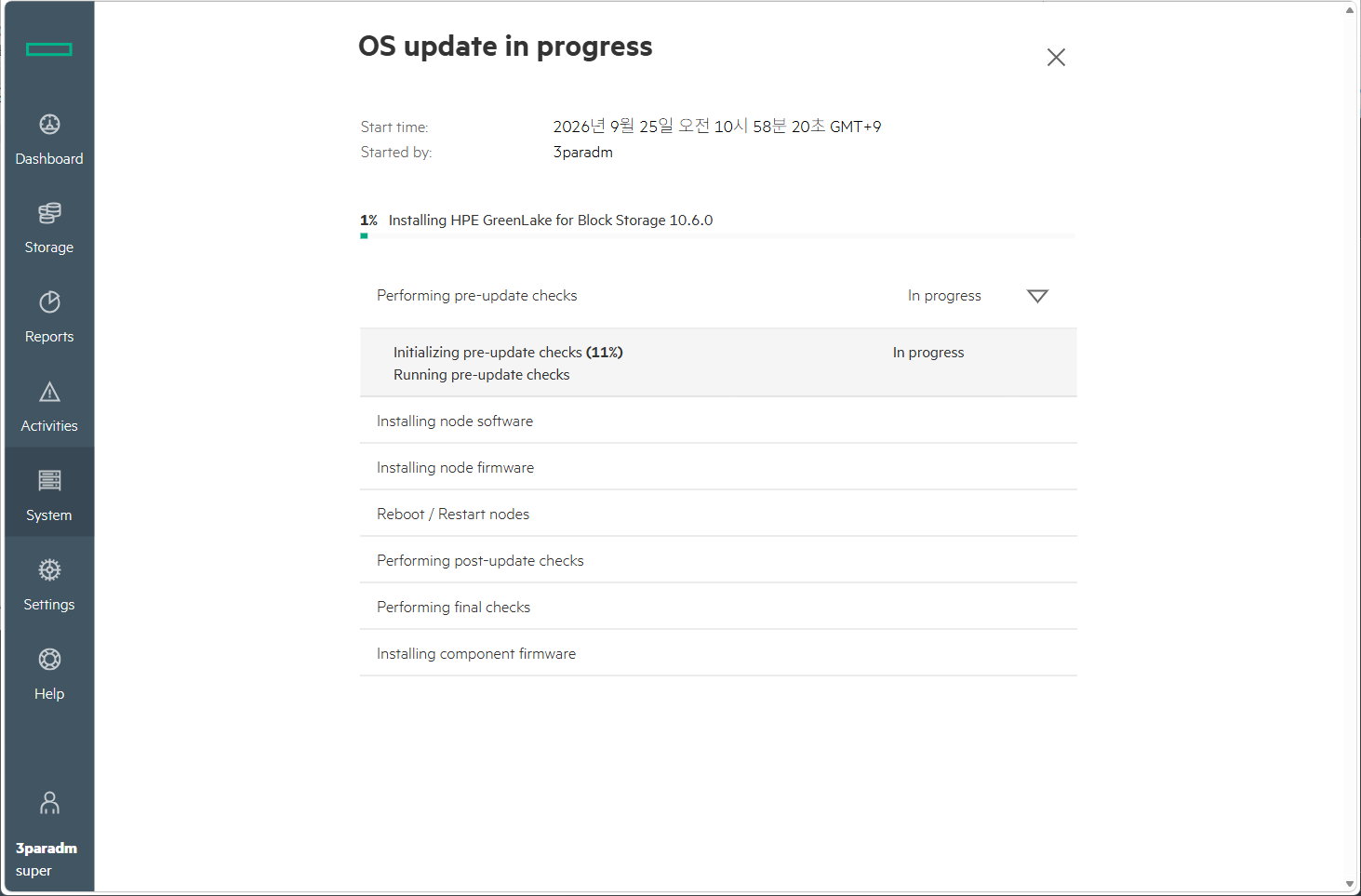
Step 6-1. OS update in progress - Initializing pre-update checks
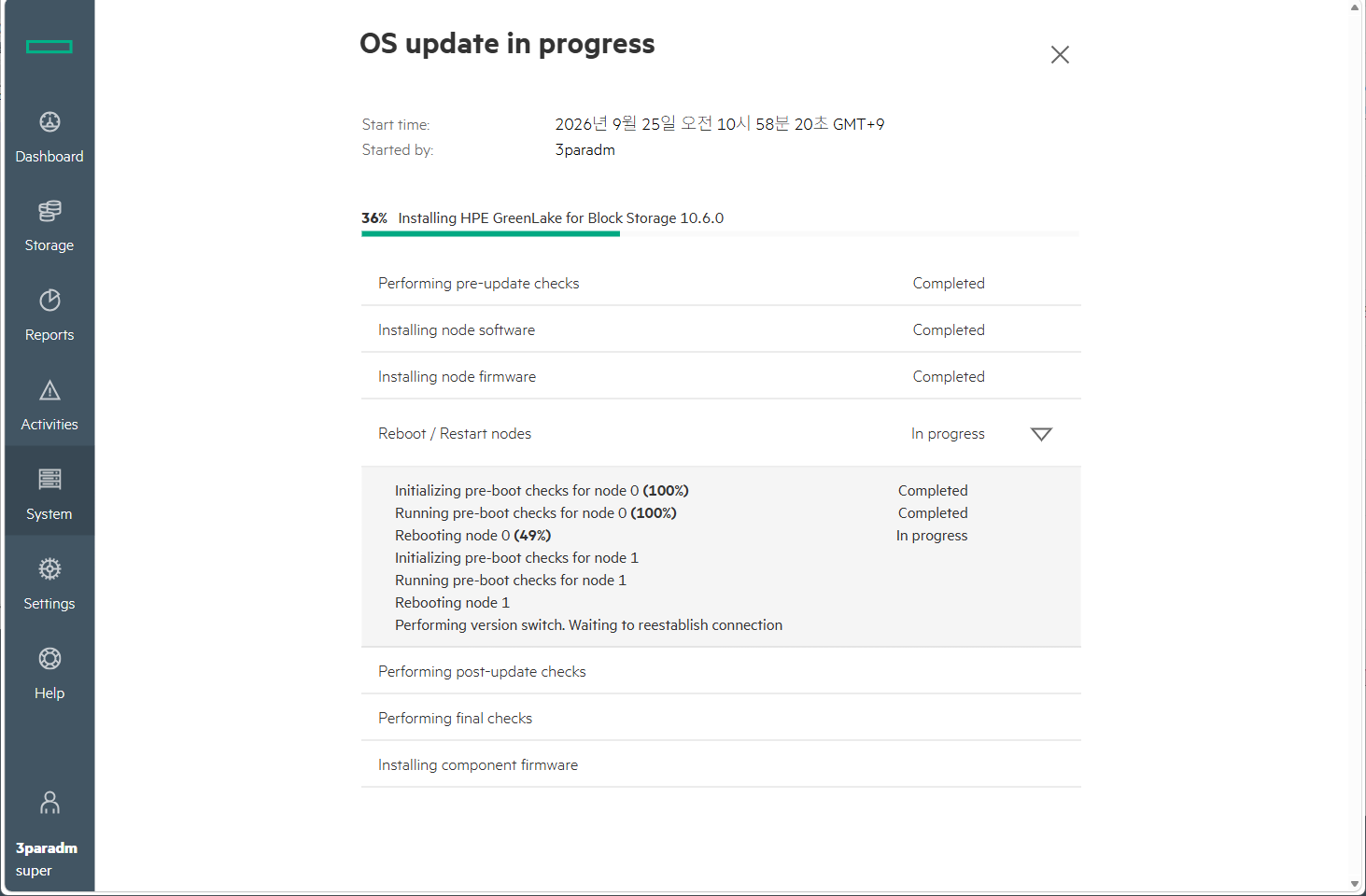
Step 6-2. 36% Progress - Sequential node reboot and failover handling
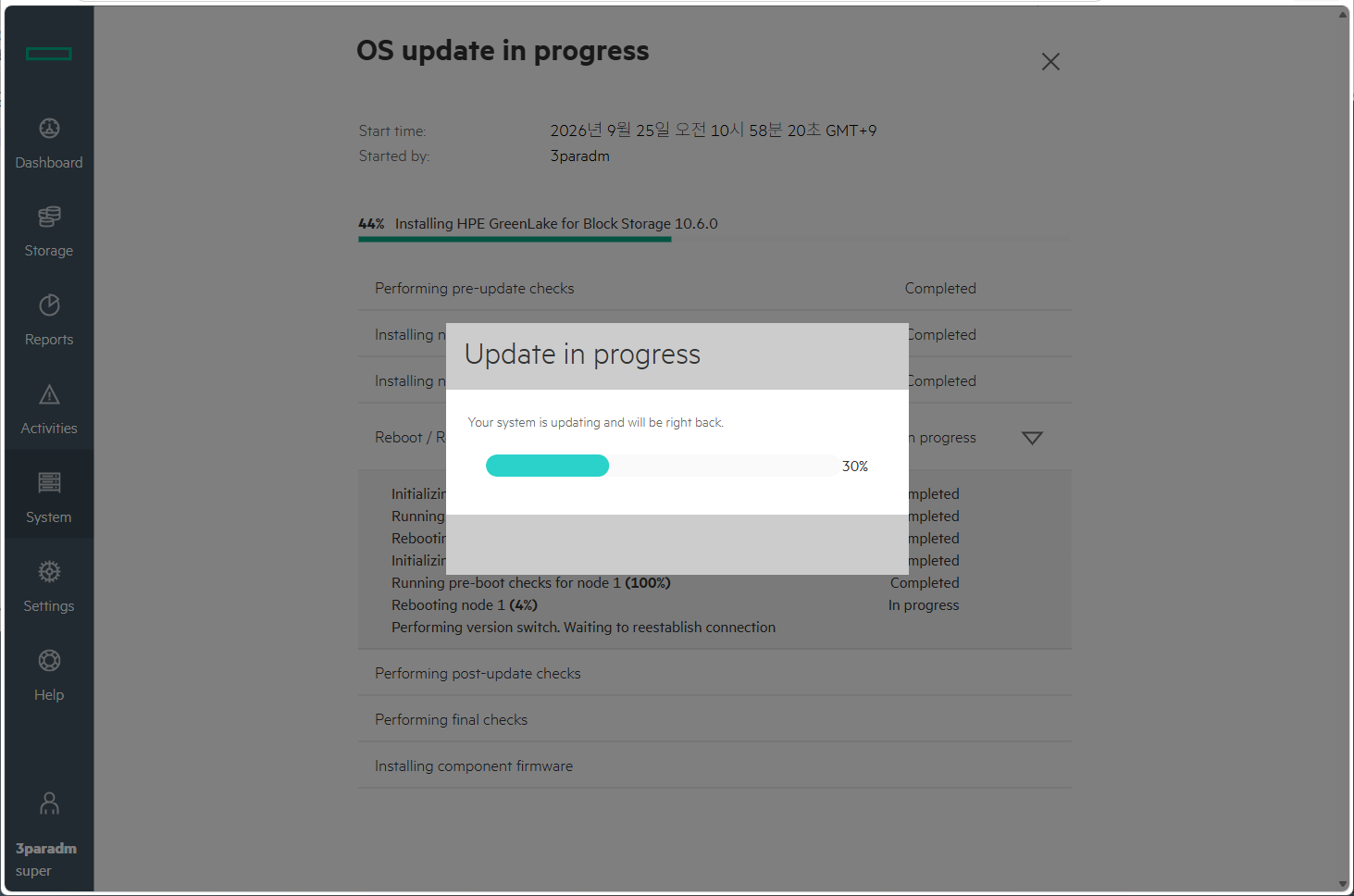
Step 6-3. 44% Progress - System version switch and web console refresh dialog
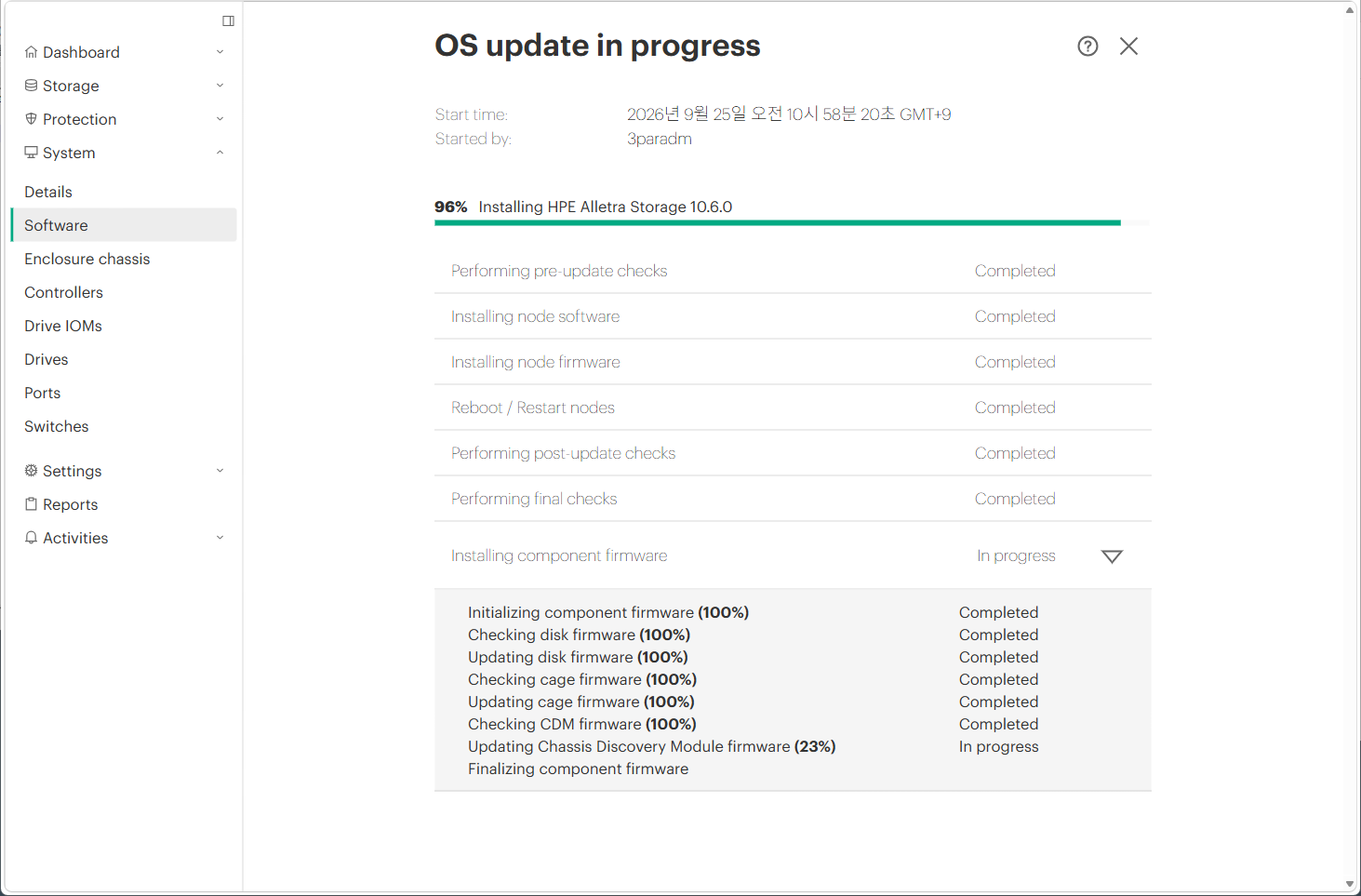
Step 6-4. 96% Progress - Automatic transition to new white UI and CDM component firmware updating
Step 7. Verify OS Upgrade Completion
Once all stages complete, the OS update successful screen appears confirming HPE Alletra Storage 10.6.0 update completed successfully across all stages.
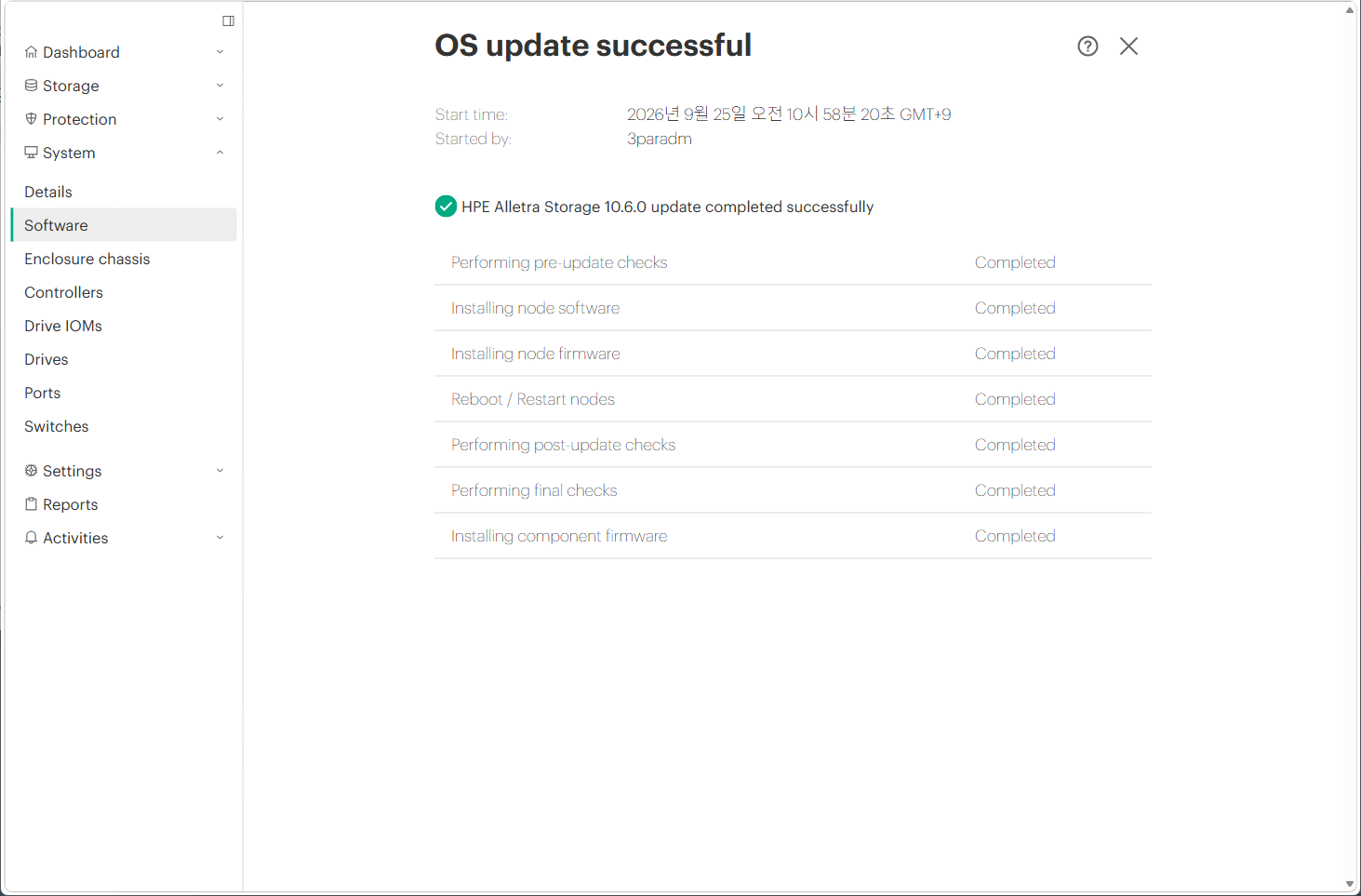
Step 7. OS update successful - All upgrade items marked Completed
Step 8. Final Dashboard Verification in the New UI (OS 10.6.0)
Navigate to System ➔ Details / Software in the new interface to verify overall system operational status:
- OS version: Successfully updated to
10.6.0. - Hardware health: All green checkmarks (
OK) for Enclosure chassis, Controllers, Drive IOMs, Drives, Ports, and Switches. - New Navigation Structure: Clean, intuitive organization across Storage, Protection, System, Settings, and Reports.
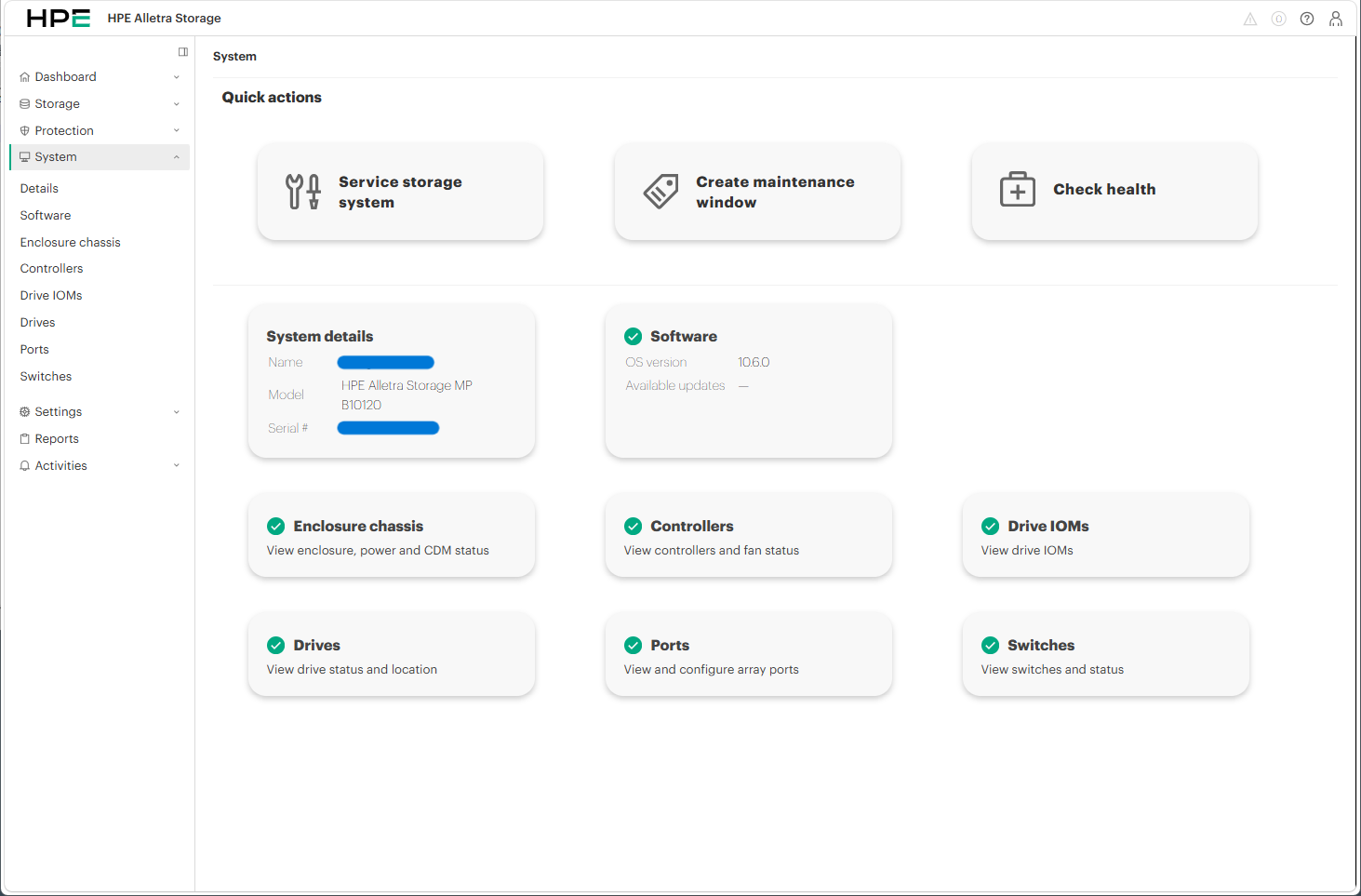
Step 8. Final System Dashboard in the new white UI verifying operational OS version 10.6.0
4. 🚨 Troubleshooting & Field Precautions
Precaution 1: Handling Warnings or Failures in Readiness Checks
- Root Cause: Severed multipath links, ongoing background backup jobs, or insufficient node free space.
- Resolution : Never check
Ignore pre-installation warningsto force an install. Resolve the underlying issue first, runRe-run checks, andonly proceed when all checks achieve Passed status.
Precaution 2: Temporary Web Console Freezing at 44% Version Switch
- Symptom: The browser may appear unresponsive or show the updating popup for 1–2 minutes during node reboots.
- Resolution: This is normal behavior during web service daemon restarts. Do not close or spam-refresh the browser; the page will automatically refresh into the new white UI once complete.
Precaution 3: When In-House Execution is Difficult (Mandatory Recommendation for HPE Engineer Support)
- **Recommendation **: HPE Alletra Storage MP powers critical enterprise tier-1 workloads. If your in-house team is unfamiliar with the process, if persistent warnings in Readiness Checks cannot be resolved internally, or if executing offline manual package updates,do not attempt to force the upgrade alone. Strongly request on-site or remote assistance from certified HPE Pointnext Services or authorized partner engineers to ensure zero data disruption.
5. Verification Checklist
- OS Version: Navigate to
System➔Softwareand confirmOS version: 10.6.0. - Component Health: Verify all 2-node controllers, chassis, IOMs, power, and fan modules report
OK. - Host Multipathing: Confirm uninterrupted I/O and active FC/iSCSI paths from connecting host servers.
6. Field Engineering Best Practices
- Leverage Automatic Staging:
Alletra MP’s cloud-connected architecture eliminates manual binary hunting when internet access is available, enabling safe one-click staging. - Adapting to the 10.6.0 UI:
Sub-menus likeDetails,Software,Controllers, andPortsare now cleanly nested underSystem, making daily operational inspections significantly faster.
7. Summary
- Core Upgrade Workflow:
- Check 10.5.50 Dashboard ➜ Verify Staged 10.6.0 Package ➜ Validate 100% Passed on System Readiness Checks (Mandatory) ➜ Execute
Update software➜ Non-disruptive Node Reboots & New White UI Transition ➜ Final Verification on 10.6.0. - With rigorous pre-checks, the entire upgrade completes seamlessly in about an hour.
- Check 10.5.50 Dashboard ➜ Verify Staged 10.6.0 Package ➜ Validate 100% Passed on System Readiness Checks (Mandatory) ➜ Execute
📢 Coming Up Next:
In this guide, we focused on the step-by-step 10.6.0 OS upgrade procedure. In the next article, we will dive deep into the completely redesigned white tree-navigation Web UI of OS 10.6.0—exploring new dashboard widgets, updated menu workflows, and enhanced volume/port management features! Stay tuned!