While official vendor manuals exist, this guide is a real-world field record documenting the OS upgrade process using the new HPE Alletra 6000 UI. For engineers and administrators, the lack of step-by-step UI screenshots can make firmware upgrades intimidating. This guide provides clear visual walkthroughs from preparation to troubleshooting.
📌 Task Overview
- Current OS Version: 6.1.2.500
- Target OS Version: 6.1.3.300
- Estimated Duration: ~ 2 hours (Includes image download, sequential node reboots, and patch application)
1. Firmware Image Preparation (Internet vs. Local)
HPE Alletra supports two methods for preparing OS update files. Choose based on your environment:
- Direct Internet Download: If the storage array has external internet connectivity (e.g., connected to HPE InfoSight), you can check and download the latest version directly from the UI.
- Local File Upload: For air-gapped environments or manual version staging, upload the pre-downloaded firmware image file from your local PC via the browser.
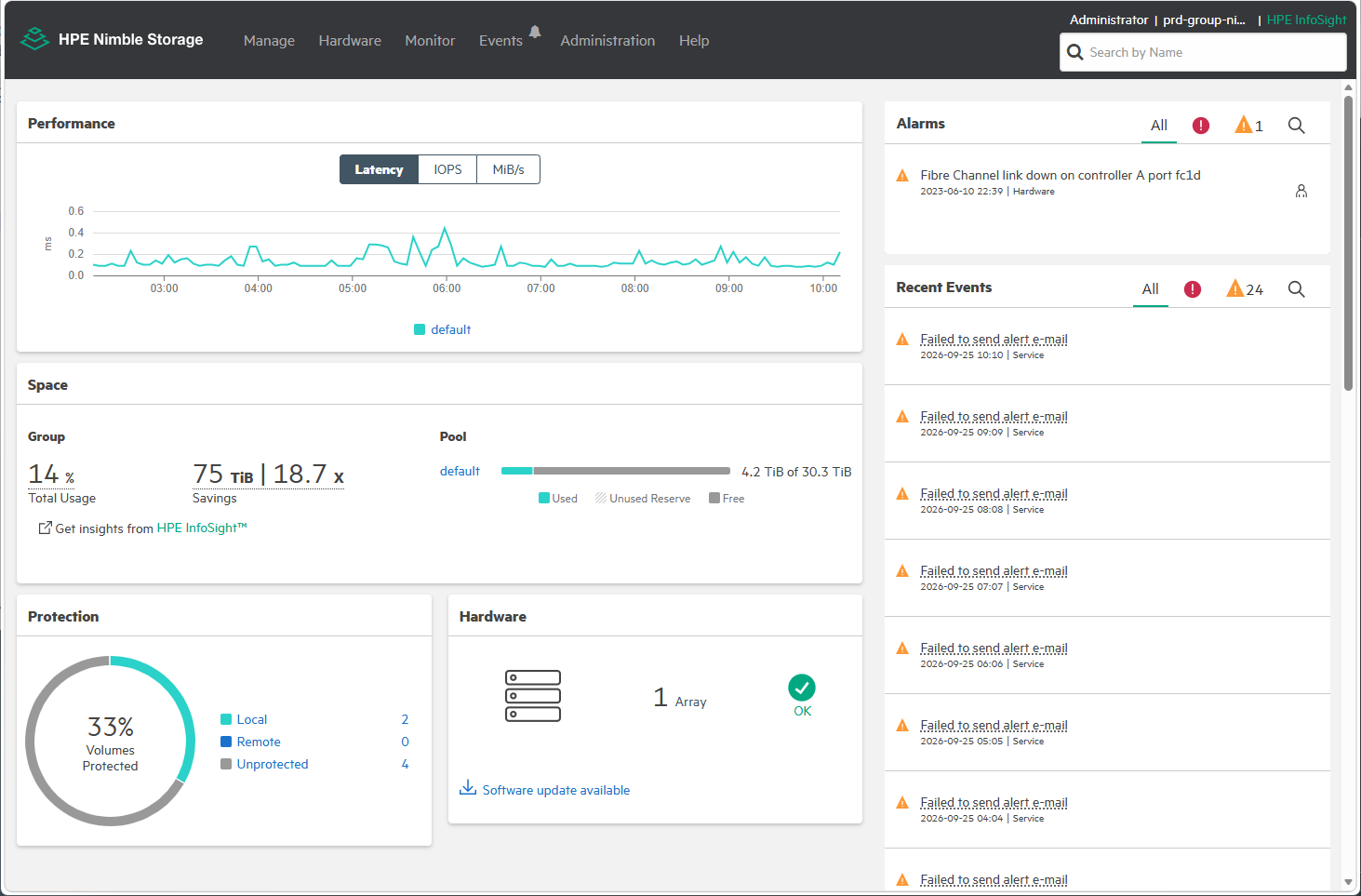
Alletra New UI Main Dashboard
2. Step-by-Step Upgrade Process
Step 1. Accessing the Software Menu
Log in with administrator credentials and navigate to the Software section from the main menu. You can view the currently installed version (6.1.2.500) and available update actions.
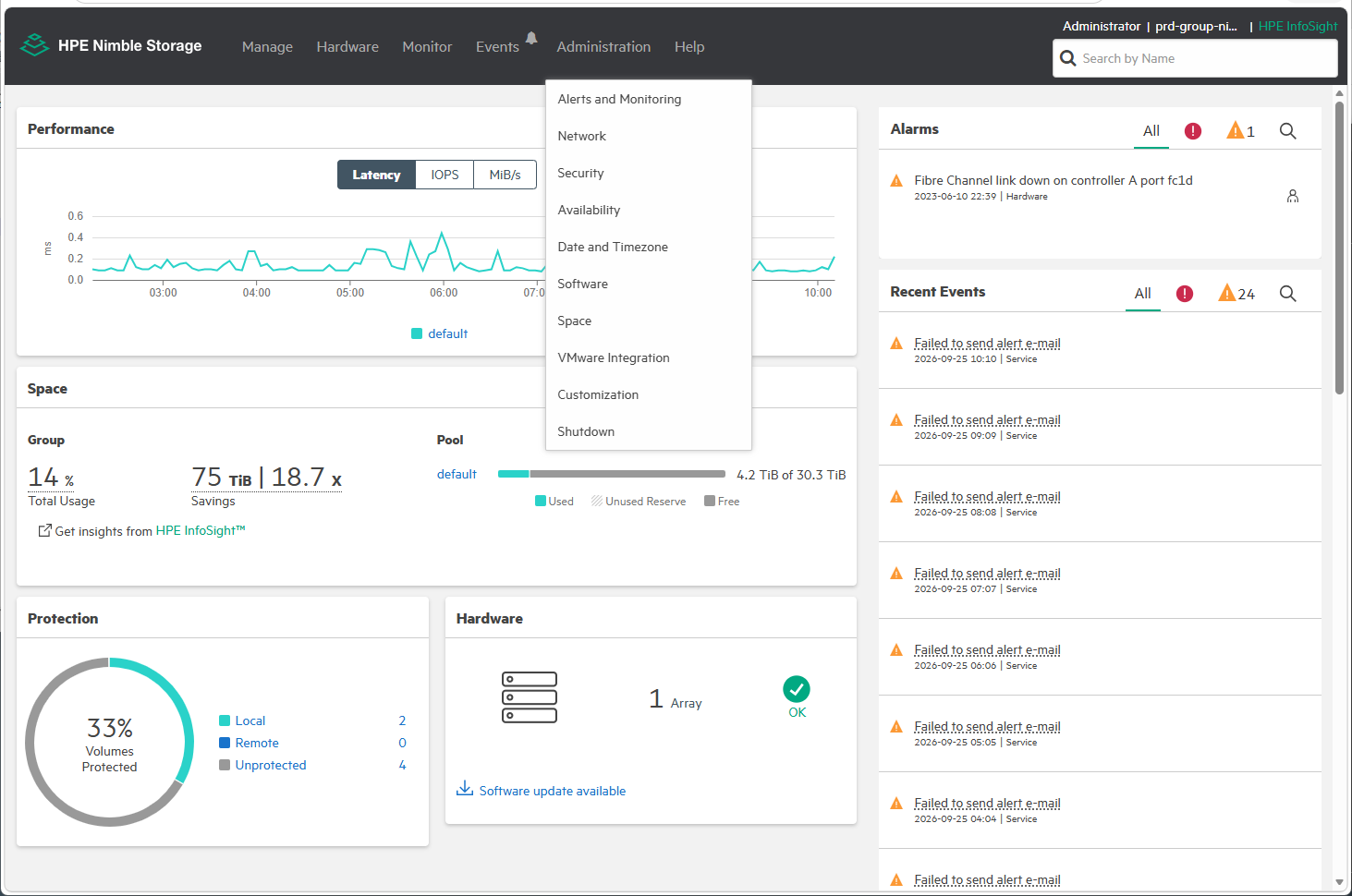
Software Management Menu Interface
Step 2. Downloading & Uploading Firmware Proceed based on your selected method:
- Direct Internet Download: Clicking the ‘Download’ button displays a list of available downloadable OS versions.
- Local Upload: Click the ‘Browse’ button to select the pre-downloaded firmware file (.iso/.img) from your local PC.
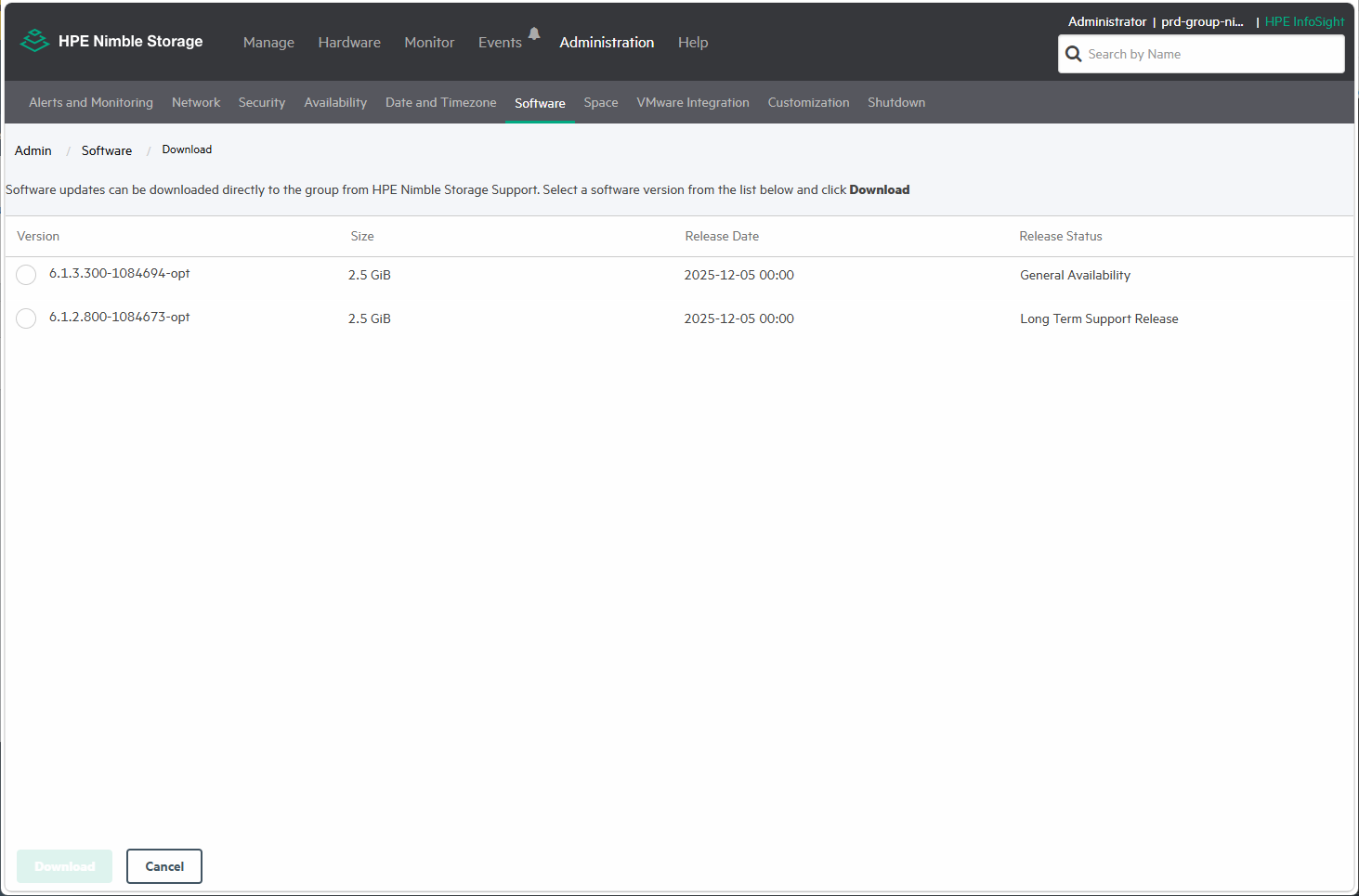
Available Downloadable OS Versions Window Displayed Upon Clicking Download
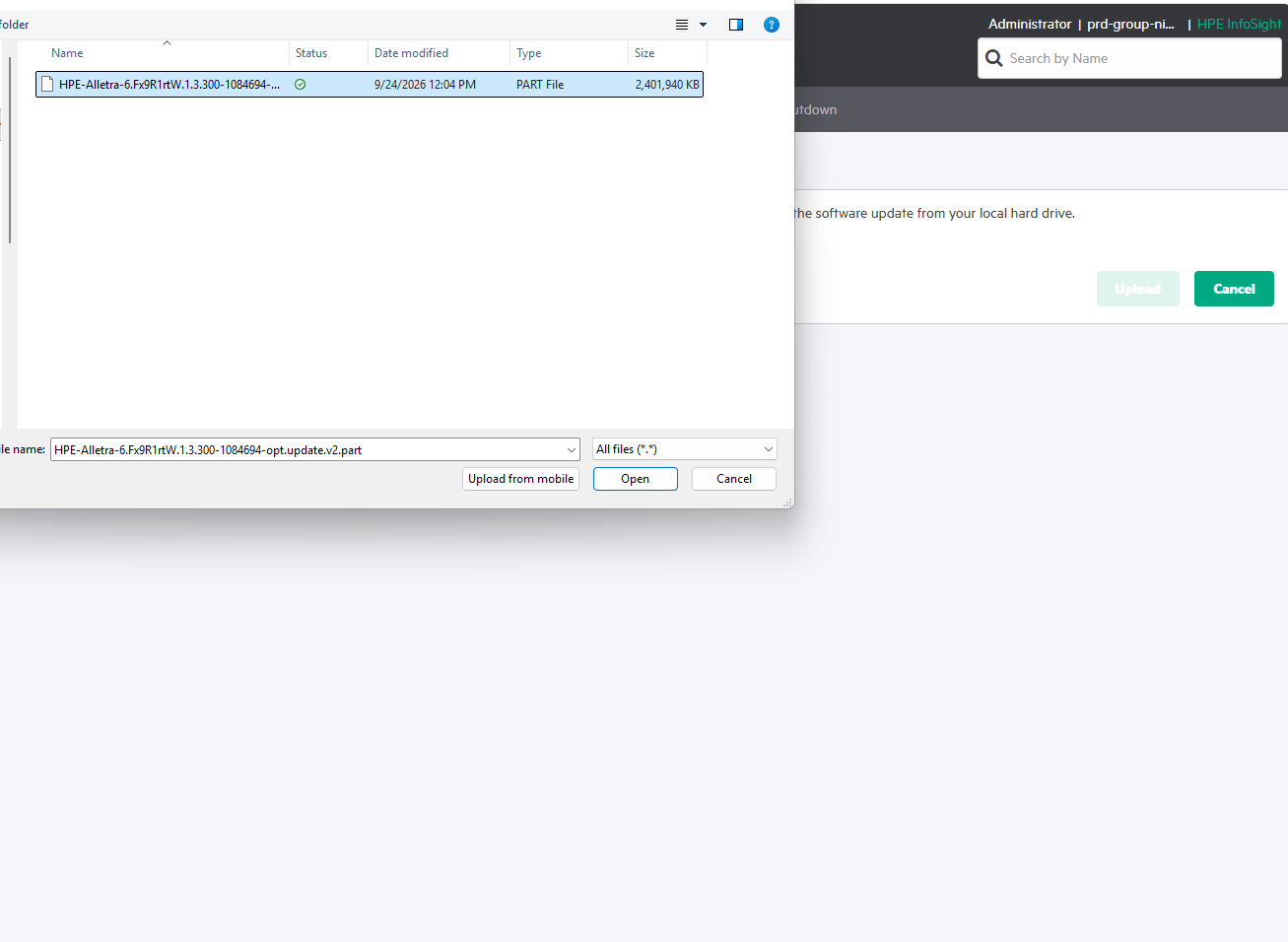
Clicking the ‘Browse’ Button to Select Local Firmware File for Upload
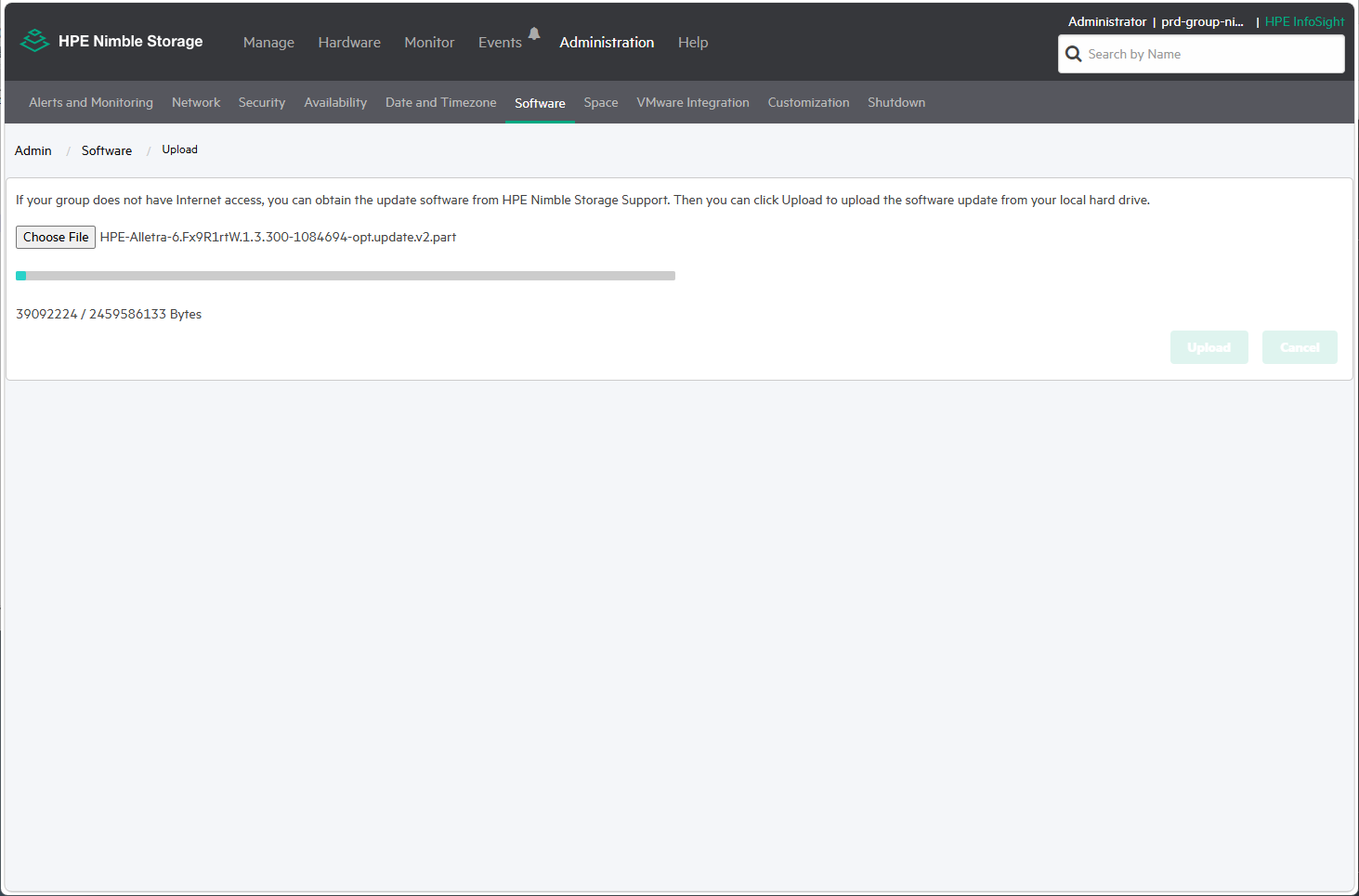
Firmware Image File Upload Progress Screen
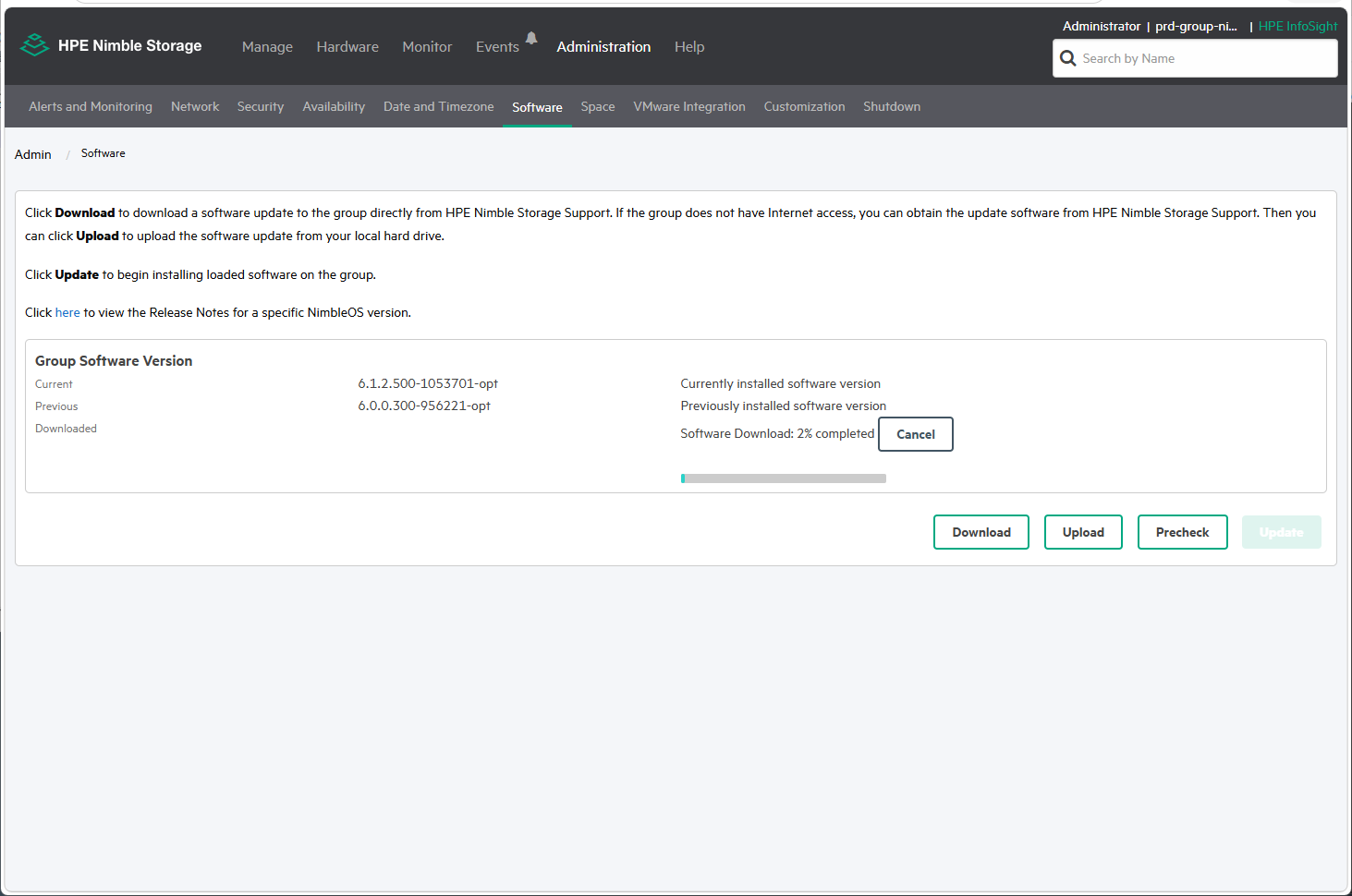
Direct Internet Download & Image Application Progress Screen
Step 3. Pre-check Routine & Update Button Activation
Once the file is staged, the system automatically runs a pre-check routine. (Screenshot missing). Once all system and volume health checks pass (Passed), the previously greyed-out Update button becomes active.
Step 4. Clicking Update & EULA License Agreement
Clicking the activated Update button opens the final End User License Agreement (EULA) popup dialog. Review and accept the EULA terms.
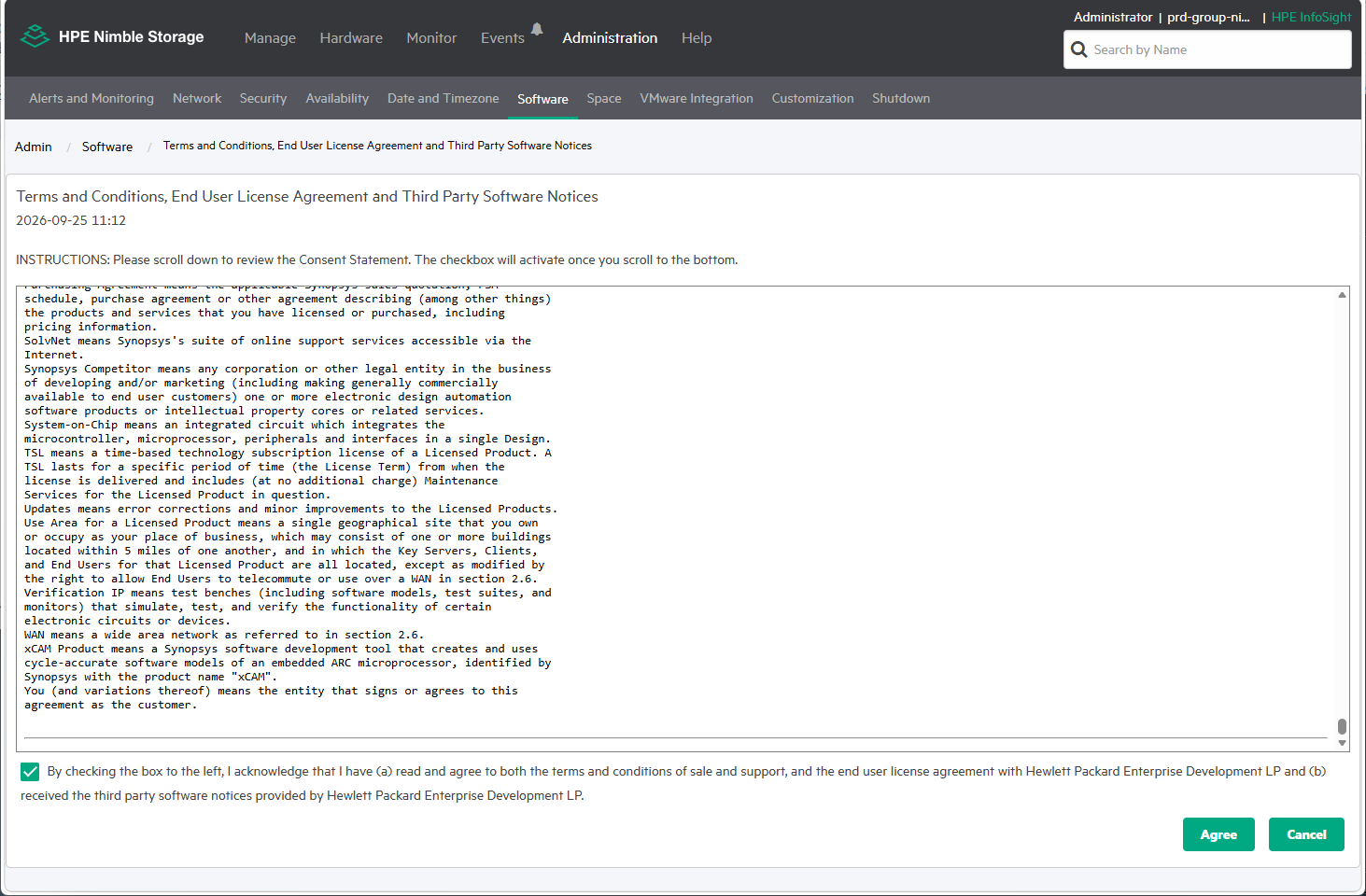
EULA License Agreement Dialog Displayed After Clicking Update
Step 5. Initiating OS & Firmware Update & Monitoring Upon accepting the EULA, controller nodes reboot sequentially to apply the new OS and component firmware patches. The UI displays real-time percentage (%) progress.
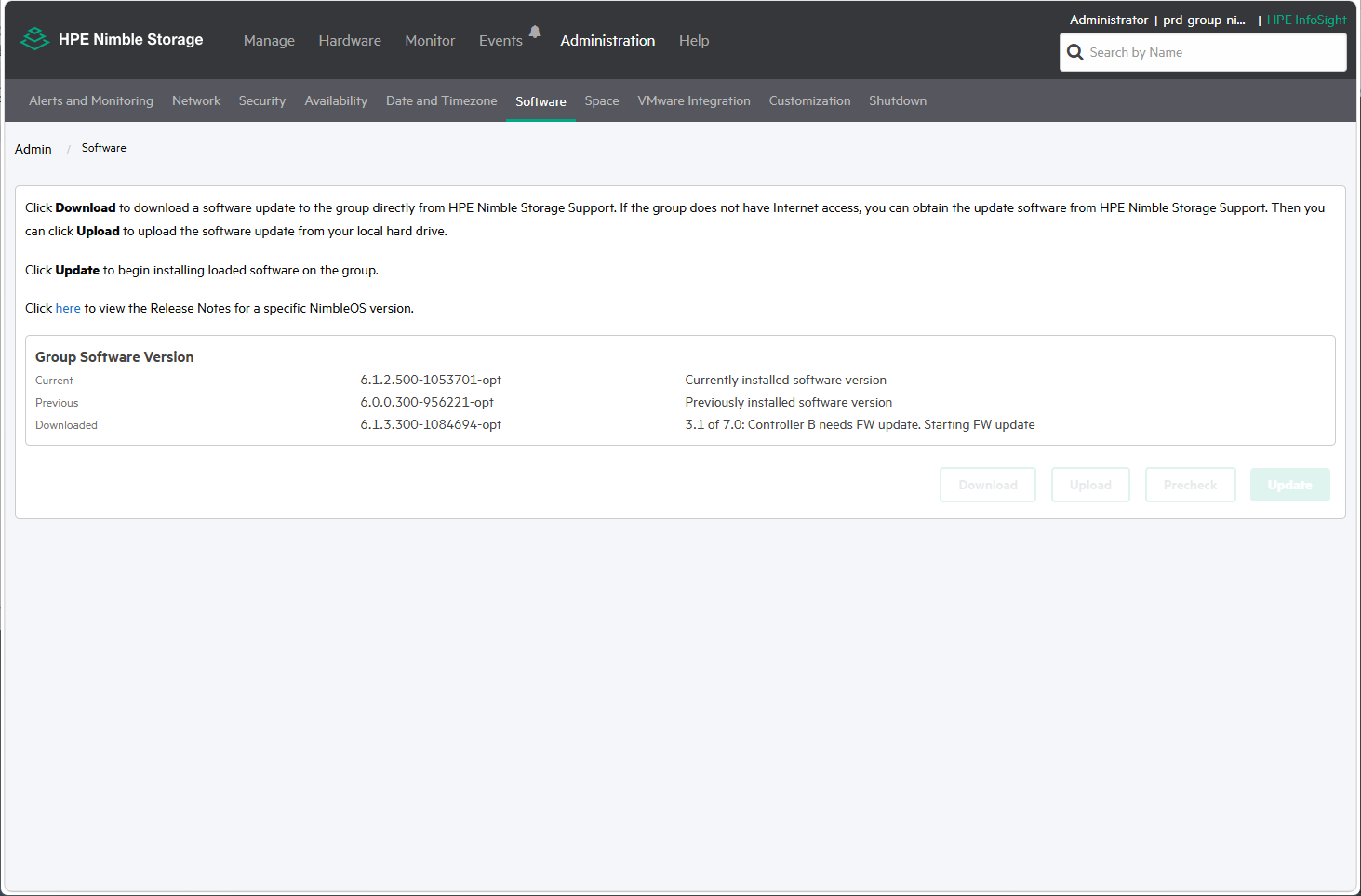
OS Update In-Progress Screen
Step 6. Completion & Version Verification After all nodes finish rebooting and patch application completes, return to the main dashboard to verify the target version (6.1.3.300).
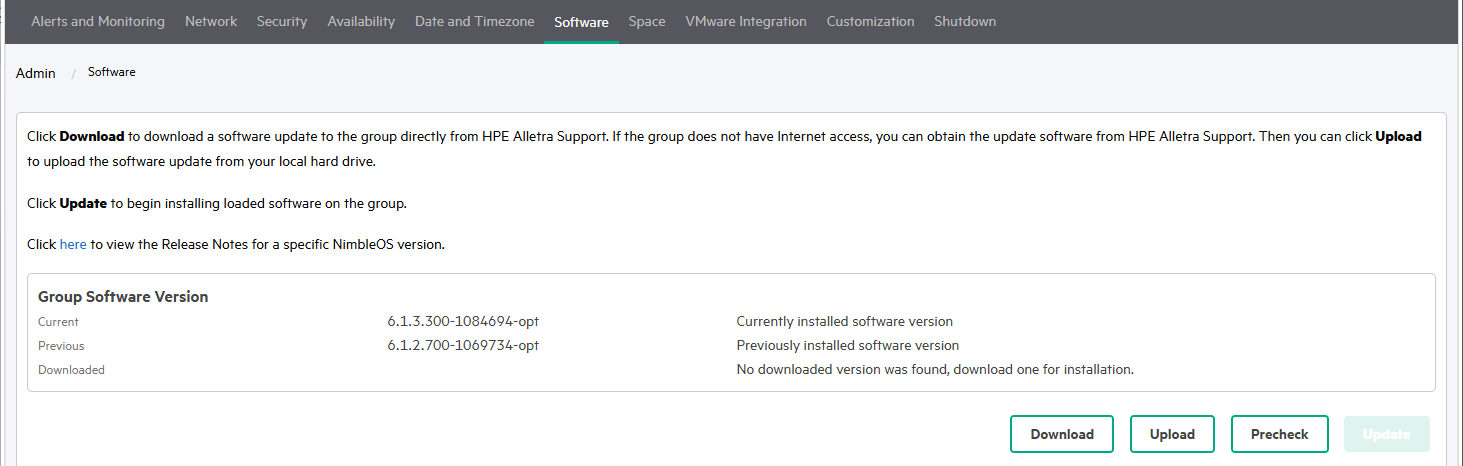
Final OS Version (6.1.3.300) Verification
💡 Note: During the OS upgrade process, hardware component FW (firmware) updates are automatically performed if necessary.
🚨 [Caution] Local Upload Troubleshooting Story
Sharing a critical mistake experienced during local file staging:
Initially, for an air-gapped setup, the 2.5 GB firmware file was being downloaded on a local work PC. Due to large file size, the download took time. Out of urgency, an incomplete temporary file (a .part file) was uploaded to the Alletra UI without verifying completeness.
Naturally, the UI threw a file corruption / checksum error and halted the upload process.
Fortunately, the storage system had external internet access. Pivoting immediately to direct internet download from within the Alletra UI allowed the download of the 2.5 GB file in ~30 minutes, saving the task.
Always double-check that local file downloads are 100% complete before uploading. A simple rule, but easily overlooked under field pressure!
Visualizing actual UI screenshots makes field work significantly smoother. Task completed successfully!